
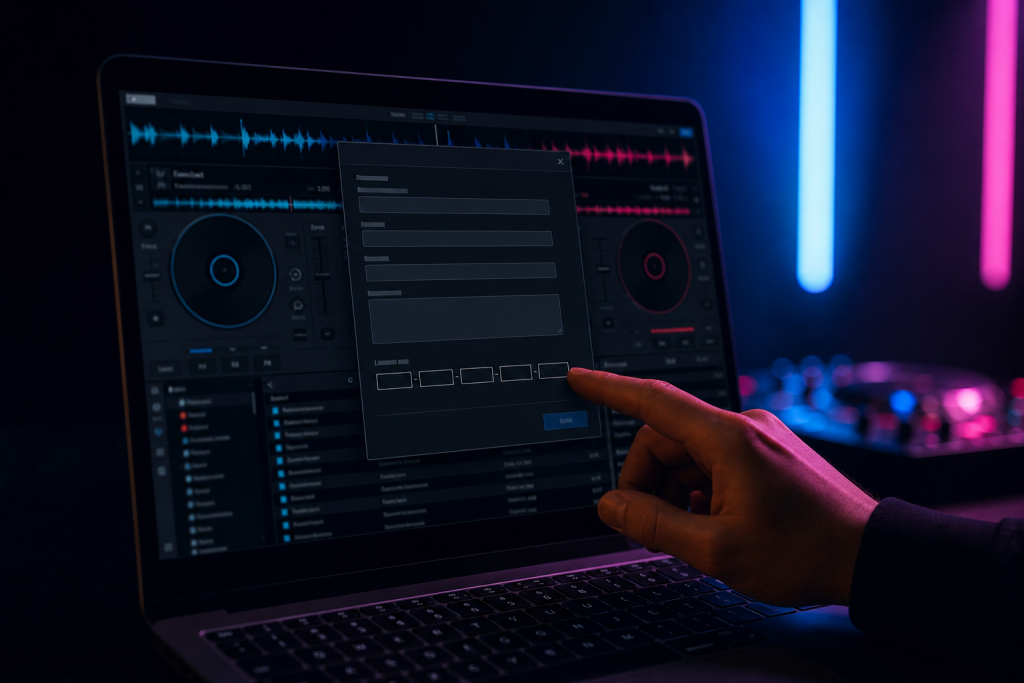
Your VirtualDJ license key (often called the serial number or activation key) is what unlocks the full version of the software. If you have not saved it anywhere, it is still usually easy to find. Here is where to look, in order of likelihood.
Where Your VirtualDJ Serial Number Lives
1. Your VirtualDJ account
VirtualDJ licenses are tied to your account. Log in at virtualdj.com, go to My Account → My Licenses, and you will see every license you own together with the serial number. This works even if you bought the license from a reseller, as long as the license was registered to your email.
2. The About screen in the software
Open VirtualDJ and press Ctrl+B (or open the Browser and click Help → About). The dialog shows your current license status and the serial number if a license is active on that machine.
3. Your purchase email
Search your inbox for “VirtualDJ”, “Atomix”, or “license”. The original order confirmation from VirtualDJ or the reseller contains the serial number. Check spam and promotions folders too — license emails are often filtered out.
4. The registration file on your computer
On Windows, the license is stored in the registry; on macOS it is in a settings file under ~/Library/Preferences. These files are not readable as plain text, but if you log in with the same VirtualDJ account on the machine, the license reactivates automatically — you do not need to read the file.
What to Do If You Lost the Serial Number
- Lost the email and the account? Use the account recovery form on virtualdj.com. You need the email address you registered with.
- Bought it years ago under an old email? Check the reseller’s order history (PayPal, the store’s account area, or bank statement). With the order reference, VirtualDJ support can normally recover the license.
- License not showing in your account? Some reseller codes need to be registered first. Open VirtualDJ, go to the license/activation area, and enter the code you received. It then appears in your account.
Activating a Fresh Installation
Download the latest VirtualDJ from the official site, install it, and open Help → Register. Paste the serial number exactly as written — the key is case-sensitive and includes dashes. After activation, the license is tied to your account, so future reinstalls are handled automatically when you log in.
Once your software is running, the next thing most DJs do is learn proper mixing technique or get their hardware connected. Both are covered in our blog.